H&S Simulation and
Resource Center
1.1 TinkerCAD Introduction
Introduction
Welcome! This section of the user guide will show you the functions of TinkerCAD so that you can create your own floor plan models and modify a template model available from the website to suit your applications. We will guide you through the main functionalities that will be required to create the models for simulation. Other functions that do not pertain to the creation of the models of facility floor plans will not be covered in this guide, but you can feel free to explore the software on your own.
1.1.1 Account Creation
TinkerCAD is a free software that only requires an email address for account creation. You can access the TinkerCAD Homepage from the TinkerCAD tab on our website and create a new personal account.
Once your account is made, you should be taken to your dashboard with a dialog box that asks whether you would like to learn how to use the software. If you are interested in TinkerCAD’s tutorial, click ‘LET’S GO’. Otherwise, you may close the dialog box and view your Dashboard.
1.1.2 Dashboard
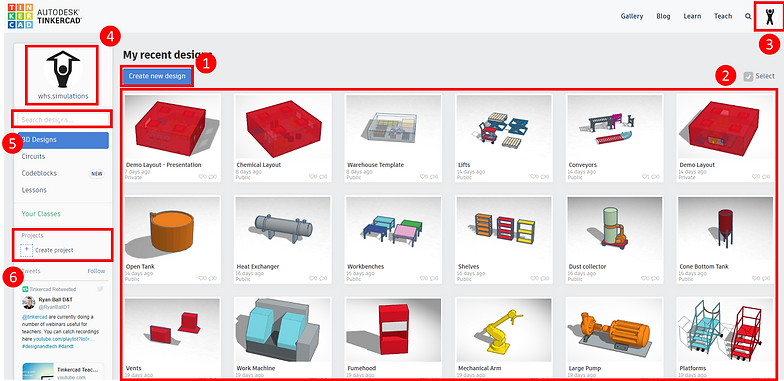
Figure 1: TinkerCAD Dashboard
Once you log into TinkerCAD, you will be able to view your personal Dashboard. There are five important areas that we will focus on:
-
Create New Designs: This button allows you to create a new modelling design. An empty workplane will open up for you to begin modelling.
-
Designs: This section shows the designs that you have either created or created a copy of. You can access each design by hovering your cursor over the image and clicking ‘Tinker this’.
-
Account: This button allows you to access your Profile and log out of your account.
-
Profile: This button will take you to the Account Settings page where you can change your profile picture, screen name, email, profile biography, and role.
-
Search Designs: Use the search bar to find designs with titles containing the keyword.
-
Projects: Projects act as folders for your design. You can create a new project by clicking ‘Create project’. Once you create a project, click on ‘Project 1’ to open the new project.
-
Create: You can create a new design within the project by clicking on this button and selecting ‘3D Design’.
-
Properties: You can access the project properties by clicking on the Gear next to the project title. A dialog box will display which will allow you to change the project Name and Description.
-
1.1.3 Design properties
You can change the properties of a design that is on your Dashboard by hovering your cursor over the image and clicking on the Gear. The following dialog box will appear:

Figure 2: Design properties dialog box
Amongst the properties shown, the main properties that are of our interest are the following:
-
Design Name: The design title should include the name and location of the room so that you can easily identify the floorplan that is being modelled.
-
Design Description: The design description field will allow you to provide more detail on the model being built.
-
Privacy: If you would like the project to only be viewable by your account, select ‘Private’ from the drop-down menu. If you would like to share your design with someone else or allow the public to be able to search your design, select ‘Public’ from the drop-down menu
1.1.4 Design sharing
Design sharing is categorized into two types: Collaboration and Design Copying. The two types of design sharing are relatively different and involve different steps.
A. Collaboration: You can invite other users to work together with you simultaneously on your design. Changes are reflected live to all users that are working on the design. However, the design would only be saved on your dashboard (the creator) and cannot be copied onto the dashboard of other users. This function can be performed with the privacy setting as either ‘Private’ or ‘Public’. To enable other users to collaborate with you on your design, follow these steps:
-
From your Dashboard, hover your cursor over the design you would like to share and click on ‘Tinker this’. This will open your design on the workplane.
-
Navigate to the top right corner of the window and click on the icon with ‘the person and a plus sign next to it’. This should open a dialog box titled ‘Collaborate’.
-
If this is your first time sharing the design, or the previously shared link has expired, click on ‘Generate new link’. Then, select ‘Copy link’.
-
With the collaboration link copied on to your clipboard, you can paste the link in your messages or email to share with another user.
-
For the other user to access and collaborate on the design, the user must have already logged onto their TinkerCAD account. Once logged on, they can open the design directly through the collaboration link and begin working on it.
B. Design Copying: You can share your design with others and allow them to copy your design for their own use. This type of sharing will not impact the original design. This function can only be performed with the privacy setting as ‘Public’ (Refer to the Design Properties section on how to view and change the privacy setting). To share your design, follow these steps:
-
From your Dashboard, select the design you would like to share by clicking on its image. This should open a dialog box with your Design Name as the title.
-
Under the image of the model, there is a ‘Link’ which you can copy and share with another user via messages or email.
-
For the other user to access and collaborate on the design, the user must have already logged onto their TinkerCAD account. Once logged on, they can open the description page of the design through the link.
-
To copy the design onto their own dashboard for their own use, the other user should click on ‘Copy and Tinker’. The copied version of the design will open on the workplane and be saved on their dashboard.